System Settings
System settings are where app-wide configurations are stored.
To access to system settings, log in as an administrator, and then click on the avatar menu, and then click the "System Settings" button, as shown below.
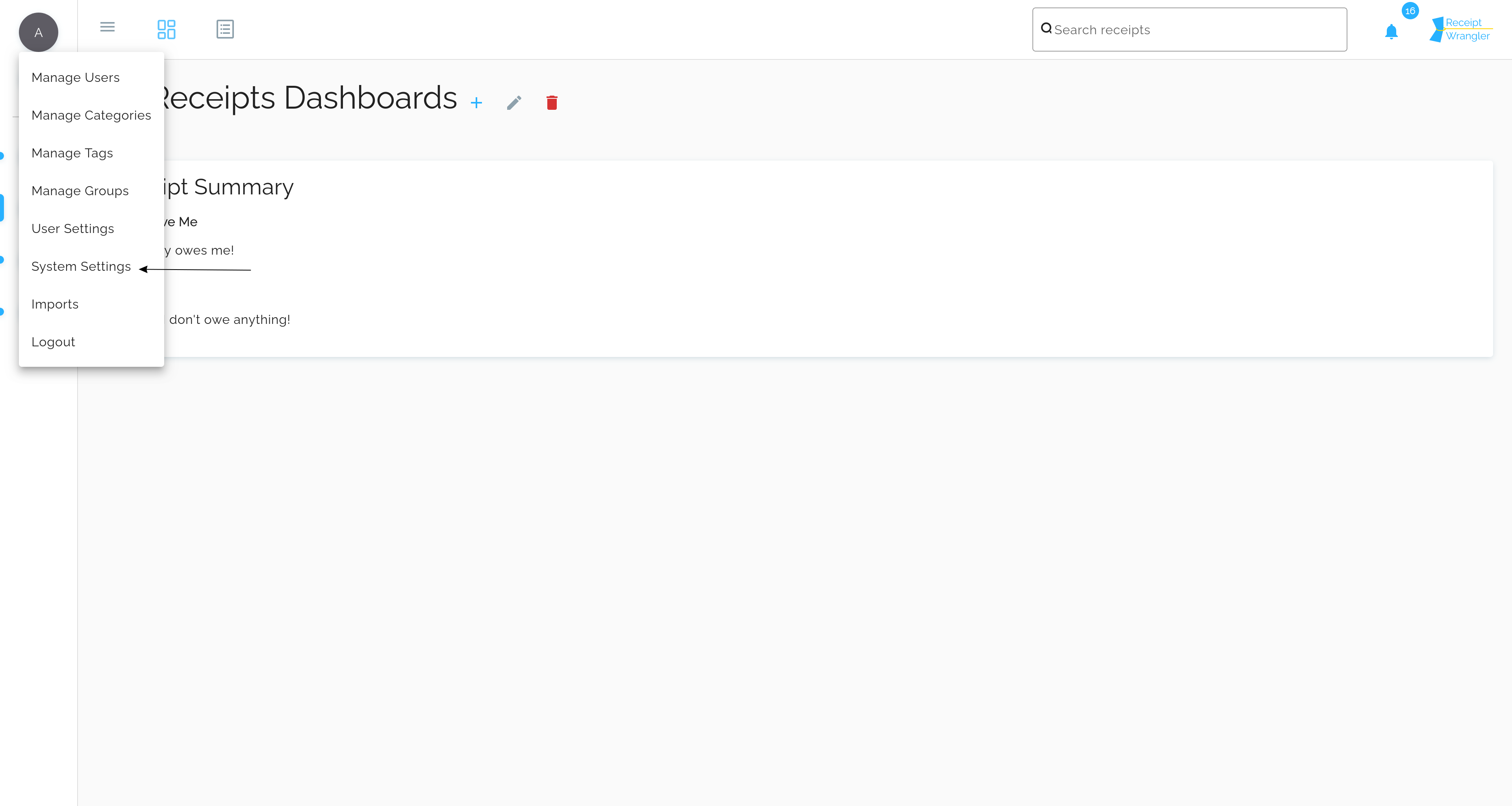
Managing System Settings
Once the user has navigated to the system settings page, they will be presented with the following screen to view, to view/edit the system settings.
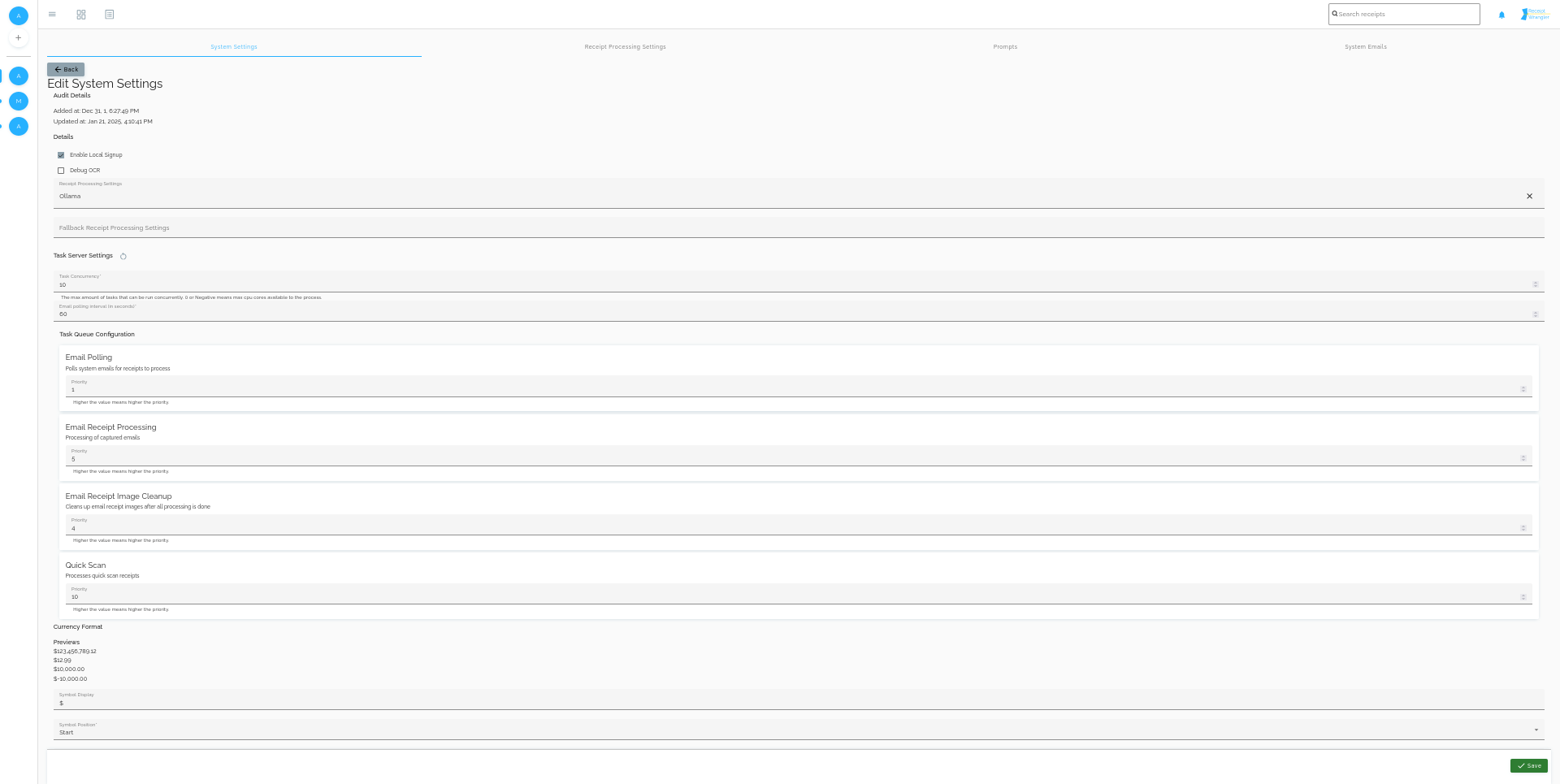
General Settings
Enable Local Sign Up
This field determines whether users can sign up for an account. If checked, users can sign up for an account. Otherwise, user accounts will need to be created by an administrator.
Debug OCR
This field determines whether OCR debugging is enabled. When enabled, OCR timing information will be logged, and the processed image will be stored in the temp directory for debugging purposes. This is primarily for developers.
Receipt Processing Settings
This field contains the Receipt Processing Settings used by the app globally. Setting this field allows email integrations to be used, as well as quick scans, and magic fill.
Fallback Processing Settings
This field contains the Fallback Processing Settings used by the app globally. These fallback settings are used when the primary Receipt Processing Settings fail to process a receipt, then the fallback settings are used.
Task Server Settings
This section configures the task server. After making changes to the task server settings (except for email polling interval), the task server must be restarted for changes to take effect. An alert will be shown to remind the user to restart the task server when necessary. See the system tasks documentation for more information.
Task Concurrency
This field determines how many tasks can be run concurrently. The default value is 10. The types of tasks that can be run are described in the task queue configuration section.
Email polling interval in seconds
This field determines how often enabled email integrations are polled for new emails. The default value is 1800 seconds, or 30 minutes.
Task Queue Configuration
Each type of task has its own queue, and each queue can be configured. Currently, the only value that can be configured is the priority of the queue with the higher number being higher priority.
The types of tasks that can be run are:
- Email Polling (Default priority: 2): This queue is responsible for polling email integrations for new emails to process.
- Email Receipt Processing (Default priority: 3): This queue is responsible for processing receipts from emails.
- Email Receipt Image Cleanup (Default priority: 1): This queue is responsible for cleaning up images from emails after processing. This is needed because the images are stored in a temp directory, and the system needs to make sure all processing is complete before deleting them.
- Quick Scan (Default priority: 4): This queue is responsible for processing quick scans.
Currency Settings
This section configures the currency settings in Receipt Wrangler.
Previews
This shows a quick preview of how the currency will be displayed throughout the app.
Symbol Display
This field determines what the currency symbol is. By default, this value is "$", it can be changed to any string, such as "USD", "CAD", "£", or even an empty string, etc.
Symbol Position
Symbol position determines where the currency symbol is placed. The options are:
- Start, f.ex $ 100.50
- End f.ex 100.50 $
Thousandths Separator
This field determines what the thousandths separator is. The options are:
- , (Comma), f.ex 1,000
- . (Dot) f.ex 1.000
Decimal Separator
This field determines what the decimal separator is. The options are:
- , (Comma), f.ex 100,50
- . (Dot) f.ex 100.50
Hide Decimal Places
This field determines whether the decimal places are hidden or not. If checked, the decimal places will be hidden, otherwise they will be shown.