Assigning Roles
Creating a role doesn't do anything on its own — a role only matters once it's assigned to someone. Application roles are assigned to users, and group roles are assigned to group members.
Assigning an application role
A user's application role is set when you create or edit the user. From the avatar menu, choose Manage Users, then create a user or edit an existing one.
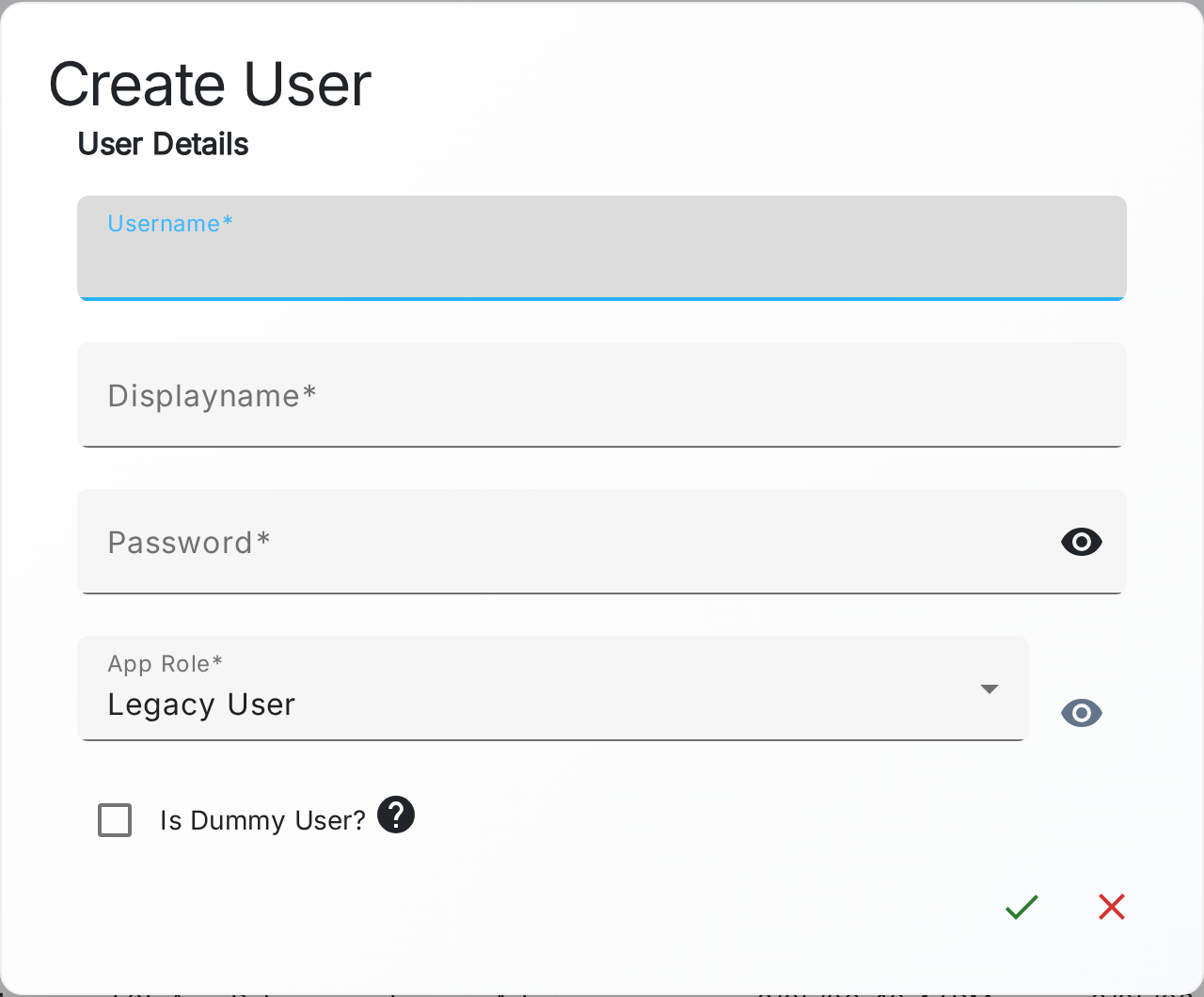
The App Role selector lists every application role. New users start on the default application role; change it here to give the user a different level of access. The eye icon next to the selector previews exactly what the chosen role grants (see Previewing a role below).
See Users for the rest of the user form.
Assigning a group role
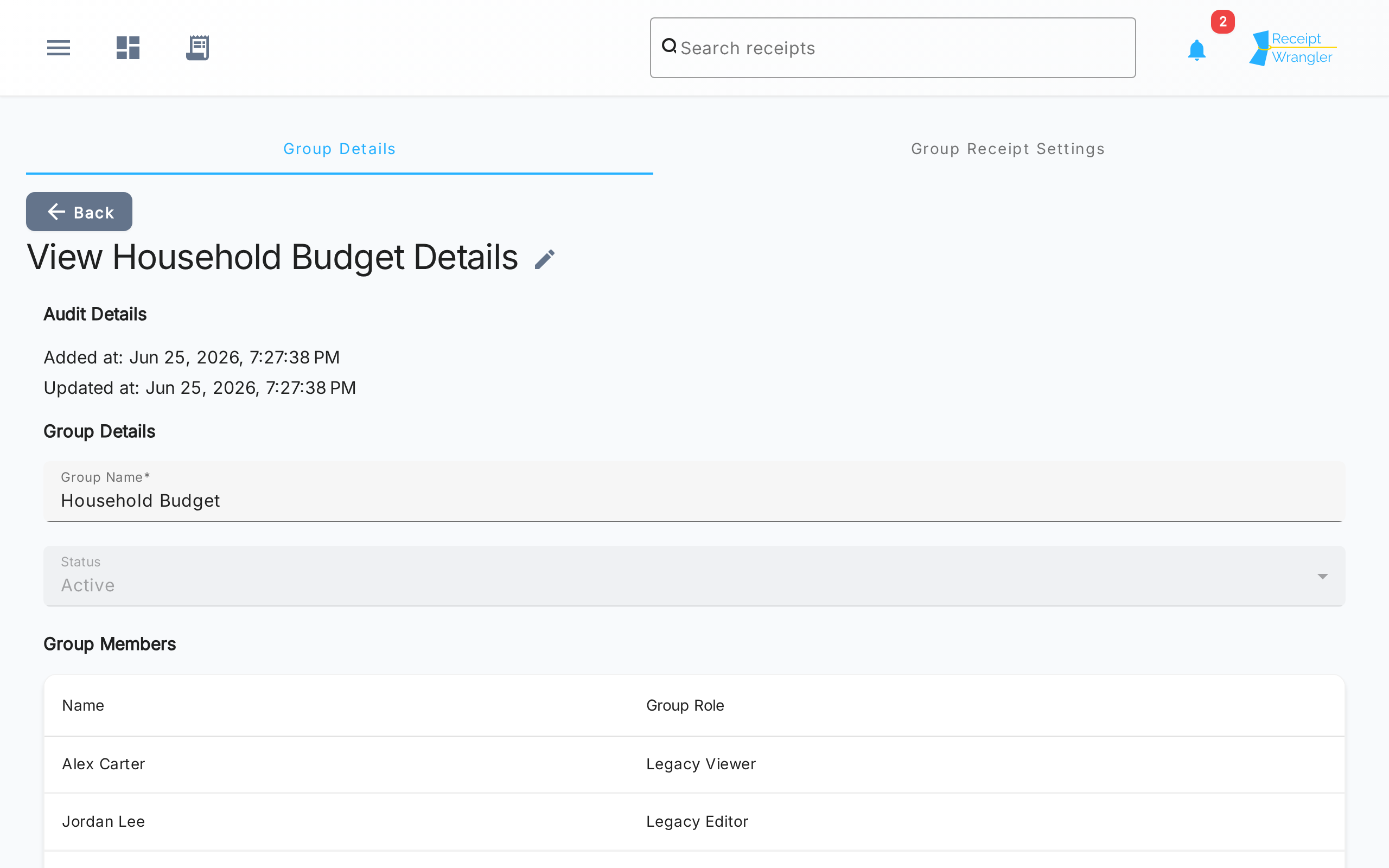
A member's group role is set when you add them to a group, or when you edit their membership. Open a group, then add or edit a member to bring up the group member form.
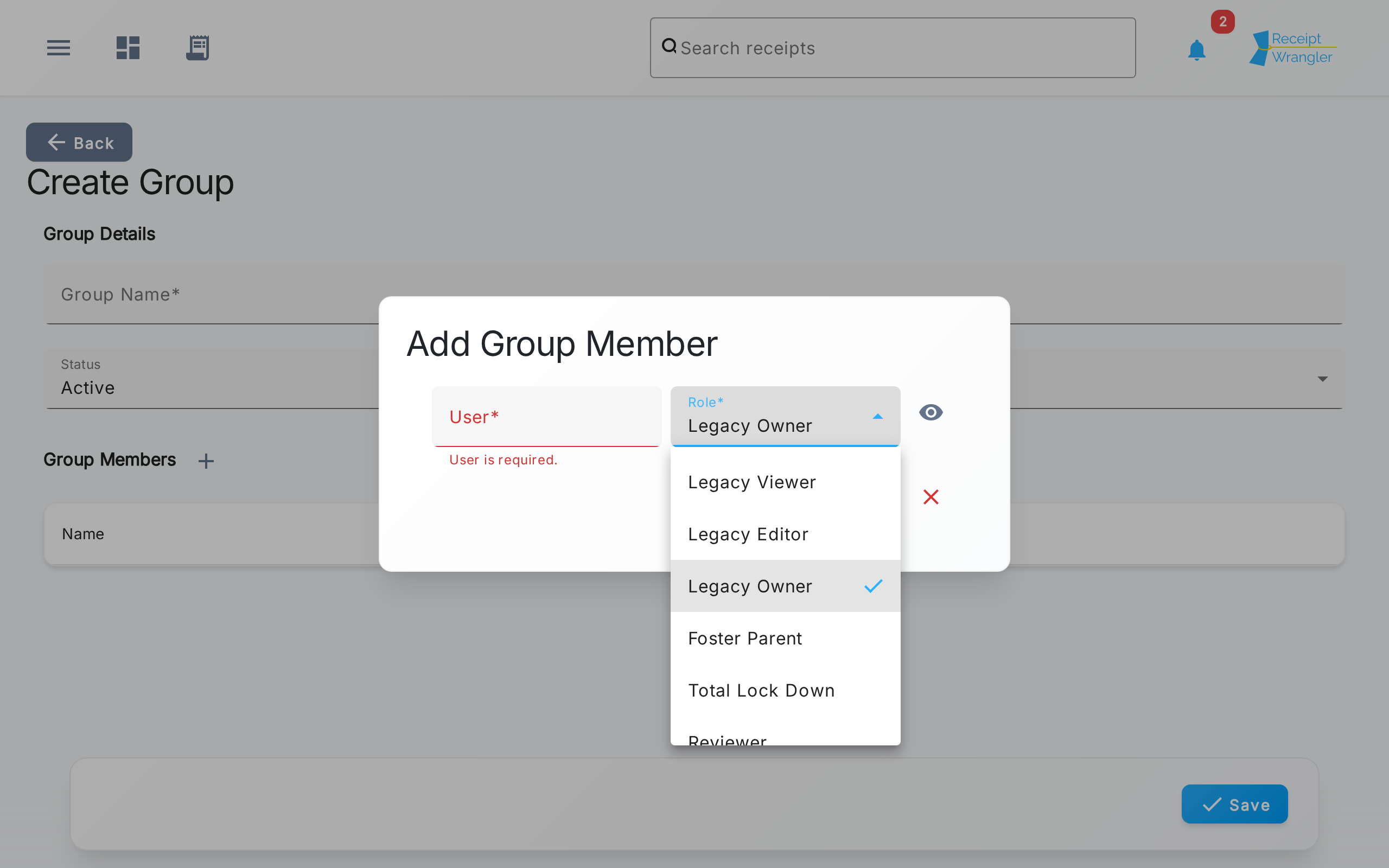
Pick the person in the User field and their group role in the Role field. The Role selector lists every group role, and new members start on the default group role. As with the user form, the eye icon previews what the role grants.
See Managing Groups for more on group membership.
Previewing a role
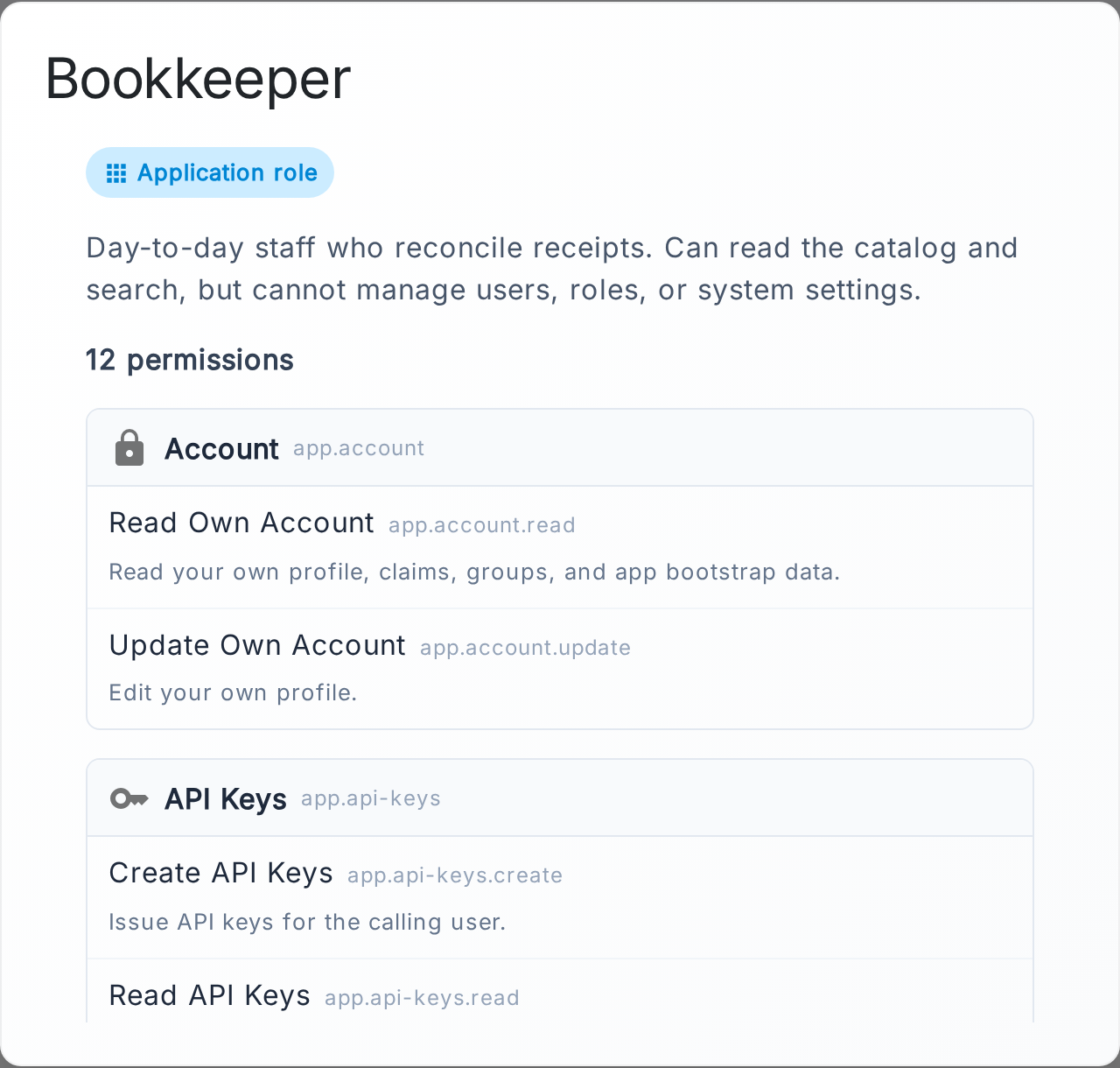
Both the user form and the group member form have a preview button next to the role selector. It opens a read-only summary of the selected role — its scope, description, and every permission it grants, grouped by resource — so you can confirm you're handing out the right level of access before saving.
Where role names appear
Once roles are assigned, their names show up wherever people are listed.
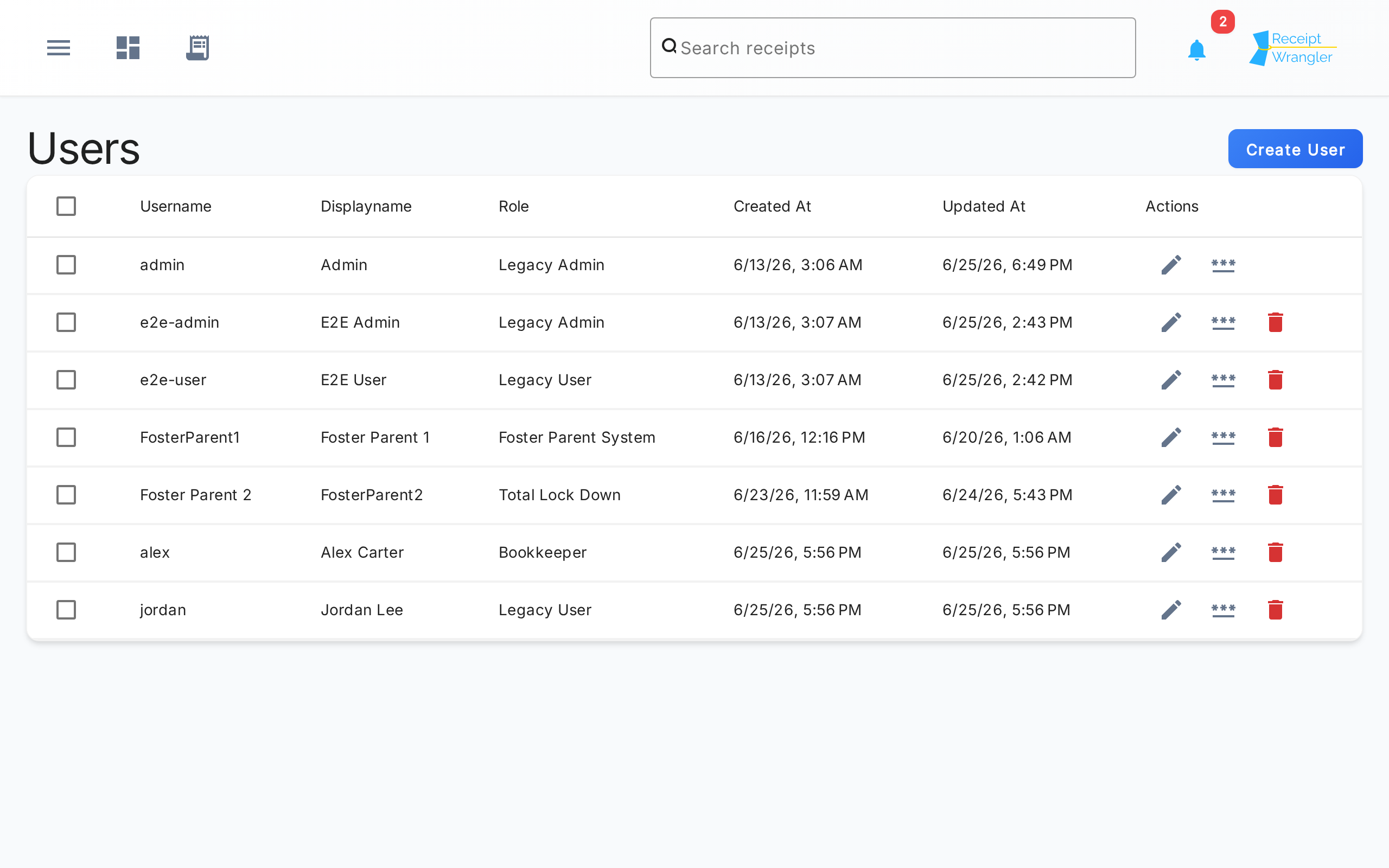
On the Manage Users page, the Role column shows each user's application role.
In a group's Group Members table, the Group Role column shows each member's group role.