Overview
Below we'll go over roles and permissions, and how they control what people can do in Receipt Wrangler.
What are they?
A permission is a single thing a person is allowed to do, such as creating a user or reading receipts. A role is a named bundle of permissions that you assign to people. Rather than granting permissions to each person one at a time, you build a role once and hand it out.
Receipt Wrangler ships with a set of ready-made roles and lets administrators create their own, so you can make access fit the way your group actually works.
Application roles vs. group roles
Every role applies to one of two scopes, and a role belongs to exactly one of them — never both.
Application roles control what a person can do across the whole installation — managing users, roles, system settings, AI prompts, API keys, and more. Each user is assigned one application role.
Group roles control what a person can do inside a single group — viewing, adding, and editing receipts, working with dashboards and comments, and so on. A person is assigned a group role per group, so the same user can be a heavy contributor in one group and read-only in another.
The two scopes are independent. A person's application role decides what they can do app-wide, while their group role in each group decides what they can do in that group.
Managing roles
Managing roles is only available to administrators — more precisely, to anyone whose application role
grants the "Read Roles" permission (app.roles.read). To manage roles, click on the user avatar and
choose Manage Roles.
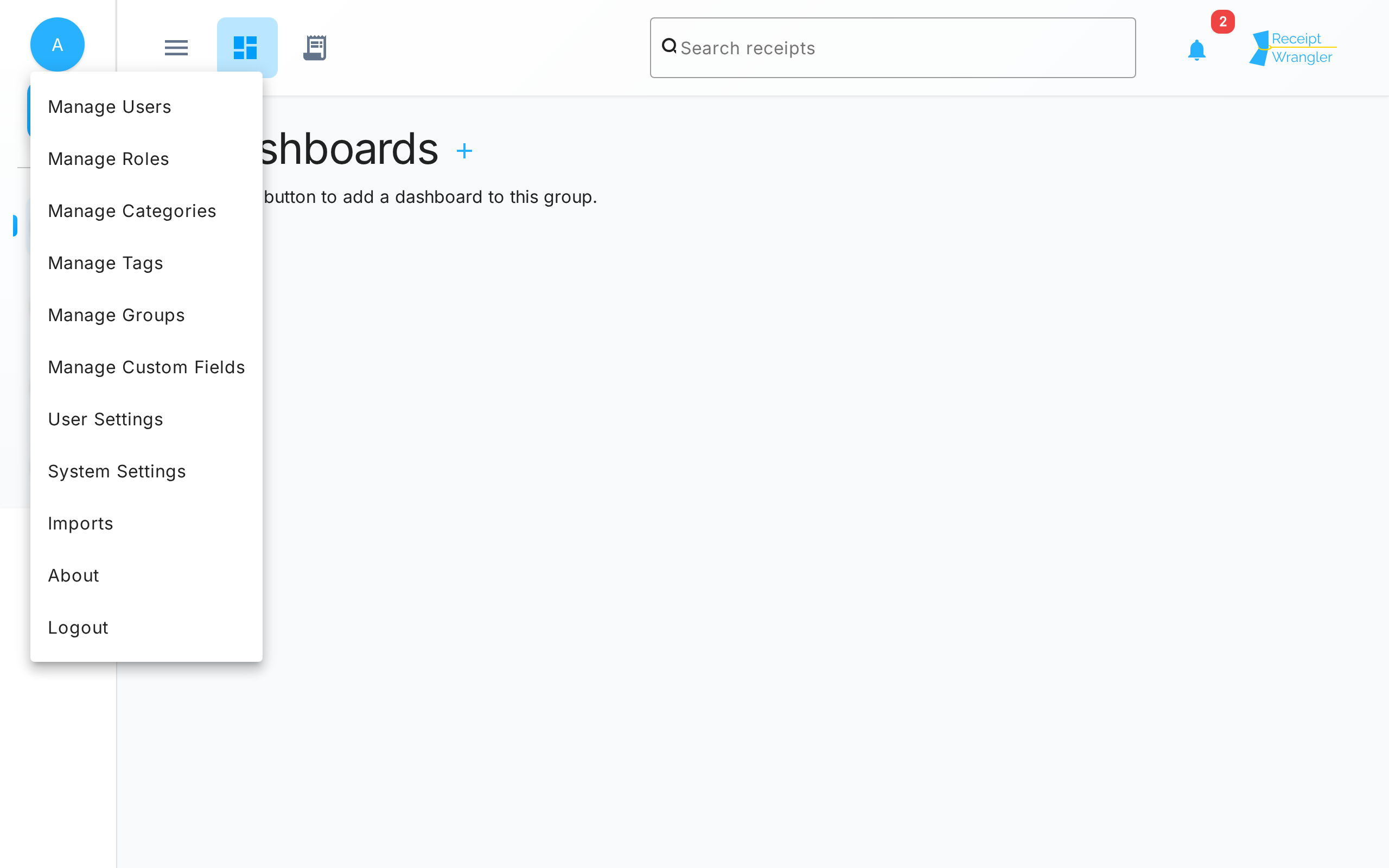
This opens the Roles page, where you can view, create, edit, and delete roles. See Managing Roles for a full walkthrough.
System roles
Receipt Wrangler creates five system roles automatically. They are marked with a System badge and cannot be edited or deleted — they are always available as a safe starting point and as the roles existing members are mapped onto when you upgrade.
| Role | Scope | What it can do |
|---|---|---|
| Legacy Admin | Application | Every application permission — a full administrator. |
| Legacy User | Application | A standard user: create groups, search receipts, manage their own account and API keys, but no administration. |
| Legacy Owner | Group | Every group permission — full control of the group. |
| Legacy Editor | Group | Add, edit, and delete receipts, plus everything a viewer can do. |
| Legacy Viewer | Group | Read receipts, work with dashboards and comments, but not add or edit receipts. |
These roles reproduce the fixed roles from older versions of Receipt Wrangler, which is why they are named "Legacy". If you are upgrading, see the Migration Guide for exactly how your existing users and members are mapped onto them. For the precise permissions each one grants, see the Permissions Reference.
Reporting is available to administrators out of the box, but not to ordinary users: Legacy Admin includes every reporting permission while Legacy User does not. Reporting also introduces a base plus "…All" permission pattern, where the "…All" variant bypasses per-group and per-template limits for a single action. See Reporting permissions.
Default roles
Exactly one application role and one group role are marked as the default (shown with a Default badge):
- The default application role is assigned to every new account when it is created.
- The default group role is assigned to whoever creates a group.
Out of the box, Legacy User is the default application role and Legacy Owner is the default group role, so new people and new groups behave exactly as they did before. An administrator can change either default at any time from the Roles page.
How permissions are enforced
Receipt Wrangler always checks a person's current permissions, read fresh from the database, on every request — it never trusts the login token for this. As a result:
- Changing a person's role, or editing a role's permissions, takes effect immediately.
- The desktop app hides buttons and pages you don't have permission for, so you generally only see what you can actually do.
A person with no role, or someone who isn't a member of a group, has no permissions there and is denied access.