Overview
Below we'll go over reporting — how to turn the receipts in your groups into shareable documents you can build once, save, and hand out or pin to a dashboard.
What is reporting?
A report is a spreadsheet or printable summary built from your receipts. Instead of exporting raw receipts and reshaping them by hand, you describe the report you want — which groups it covers, the time period, how the rows are grouped and totalled, and which columns appear — and Receipt Wrangler renders it for you as a CSV, Excel, or PDF file.
You can run a report once and download it, or save it as a template so you (and others) can generate the same report again later without rebuilding it. Saved templates can also be pinned to a dashboard as a live Report widget.
How to get to Reports
To open reporting, click the user avatar and choose Reports.
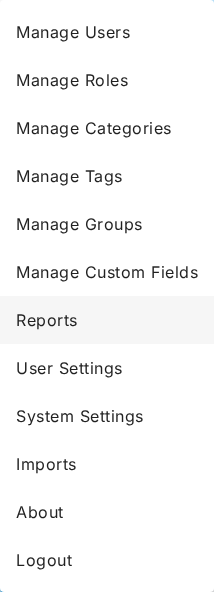
This opens the Reports page — the list of saved report templates, and the starting point for building
a new one. Reporting is only available to people whose application role grants the Access Reports
permission (app.reports.read). If you don't see the Reports entry in the menu, your role doesn't
include it — see Reporting permissions.
The pieces
Reporting has three parts, each covered on its own page:
- Report Builder — the two-pane screen where you configure a report and see a live preview as you go, then download it or save it as a template.
- Saved templates — the Reports list, where saved report templates live. From here you can open a template in the builder, generate it, duplicate it, or delete it.
- Report dashboard widget — a view-only widget that pins a saved template to a group dashboard and shows its rendered output.
Reports run under your group permissions
A report only ever includes receipts you're allowed to see. Every report is scoped to one or more
groups, and you can only report over a group when your group role there grants the Read Reports
permission (group.reports.read). The same category, tag, and paid-by restrictions that limit what you
see elsewhere also apply to a report's data.
Because reports run under the group permissions of the person generating them, the same saved template can produce different results for different people — each person sees only their own accessible receipts.
Output formats
Reports can be generated in three downloadable formats:
- CSV — a plain comma-separated file for spreadsheets and imports.
- XLSX — a formatted Microsoft Excel workbook.
- PDF — a printable, laid-out document.
You can pick more than one format at generation time; when you do, the files are delivered together as a single zip. The on-screen live preview in the builder is rendered as HTML, which is a preview medium only — it isn't one of the downloadable formats.
For exactly which permissions control who can build, generate, save, and manage reports — including the per-template access controls — see Reporting permissions.