Report Dashboard Widget
The Report widget pins a saved report template to a group dashboard and shows its rendered output right on the dashboard. It's view-only — a way to keep a report in front of you without opening the builder each time.
Adding the widget
Report widgets are added like any other widget, from the dashboard form (see Managing Dashboards). When you add a widget, choose the Report type, then pick which saved template it should show.
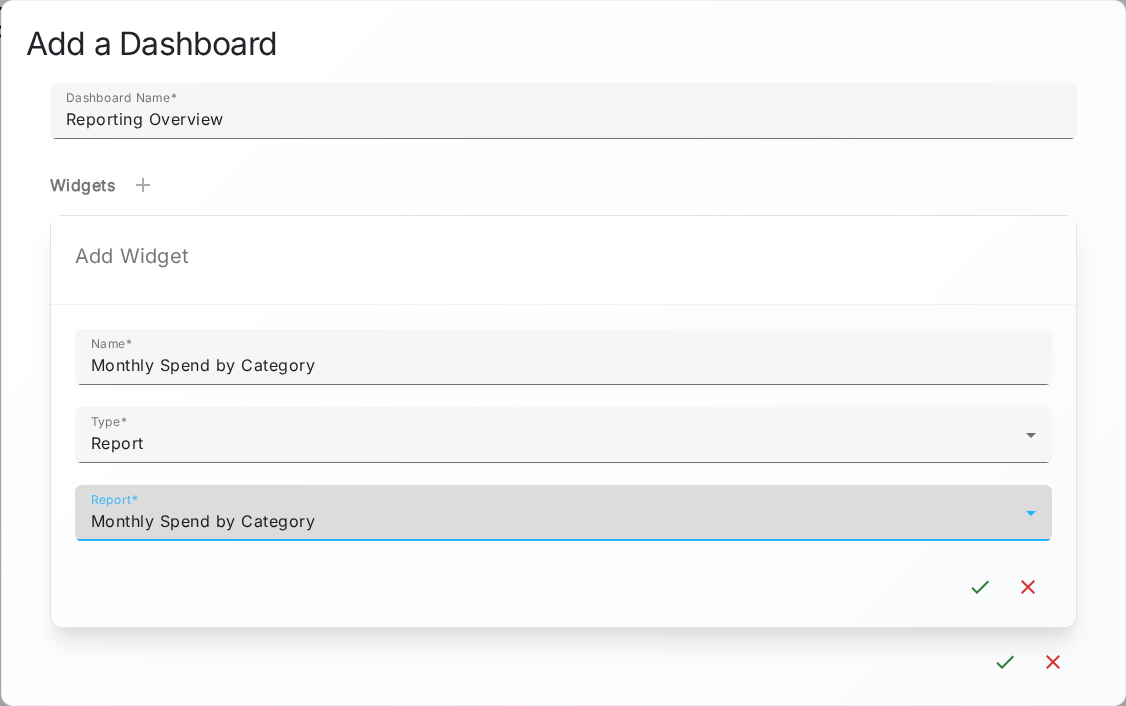
The Report widget type only appears in the list if your role grants the Access Reports permission
(app.reports.read), and the template picker only lists templates you're allowed to see.
What the widget shows
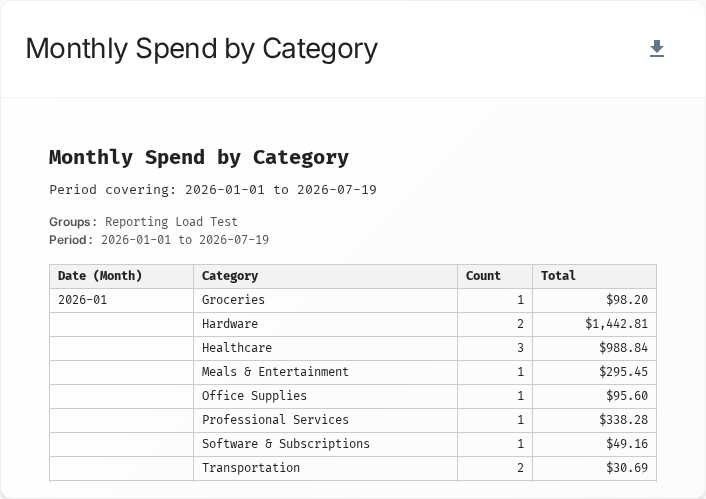
On the dashboard, the widget renders the template's report inline. Unlike the builder's capped preview, the widget renders the report's full dataset. The output is sandboxed for safety, and a long report scrolls within the widget rather than stretching the tile.
Access is re-checked every time the widget loads. If you no longer have access to the pinned template — for example the template was deleted, or your role's access to it was changed — the widget shows a brief Restricted notice instead of the report.
Downloading from the widget
A download button appears in the widget's corner, but only when you're allowed to generate that report. Clicking it downloads the report the same way the Generate action does on the Reports list.
Viewing and downloading are governed separately. Seeing the widget's report requires the template's view access; the download button requires the template's generate access. Someone can be allowed to view a report on a dashboard without being allowed to download it — in that case the report renders but no download button appears. See Reporting permissions.